Find features after the navigation update
The navigation has changed. This guide helps you:
- Find features after the navigation change
- Complete common tasks without relearning the interface
Overview of the new navigation
Use this overview to understand where key elements moved in the interface.
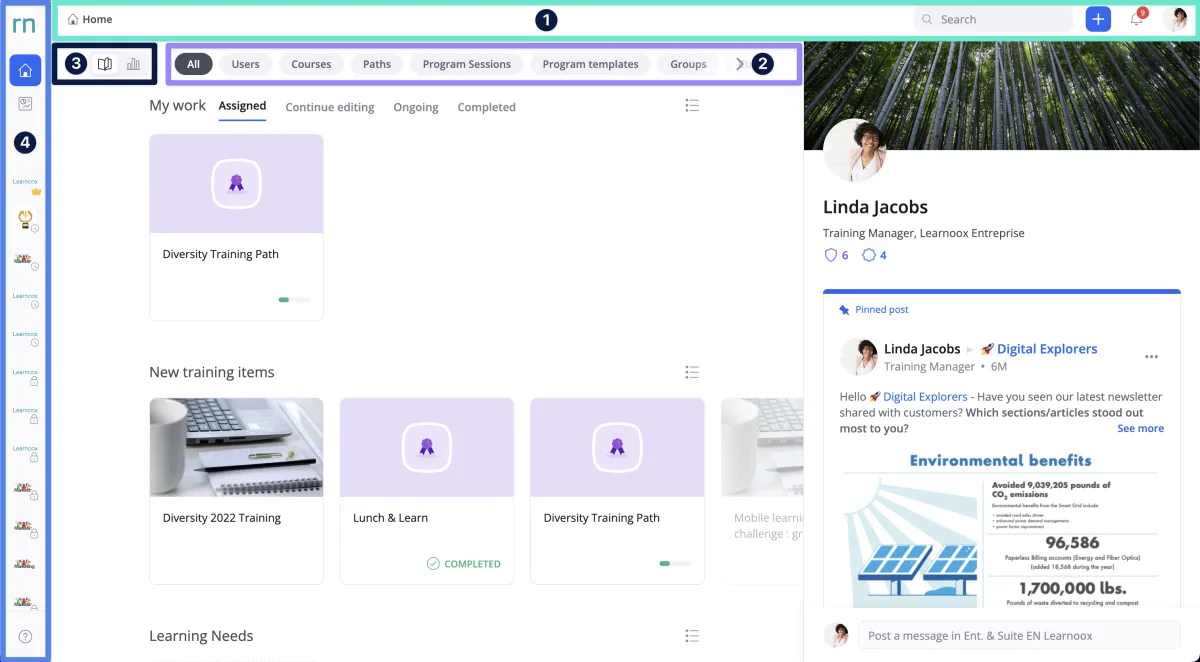
New top navigation menu
Use the top navigation menu on all pages (1) to access key sections. Breadcrumbs make it easier to navigate through pages and know where you are.
Quicker page access
Directly jump to any page in one click (2). No more clicking through menus!
Quicker dashboard access
Use filters (2) to view course info, user stats, and more. Switch from the Content to the Stats view (3) to access dashboards directly from the homepage and group pages.
Organized workspaces
Keep things organized with two workspaces (4):
- From the home workspace, you will access objects related to all groups.
- From the group workspace, you will access objects related to the selected group.
View user stats
On the homepage or any group page, select the Users filter to view user stats.
Access dashboard data
Administrators, Coaches, Authors, and Owners can now:
- view any course, user, program session, and more directly from the homepage,
- and switch to the "Stats" view to view quick insights.
If you are a learner, your homepage and group pages remain unchanged.
Find reports in the new navigation
Reports are now located in a different section. Follow these steps to find them:
- On the homepage, select the All filter.
- Switch to the Stats view.
- Open the Custom Reports tab.
From this page, you will be able to create reports and view saved reports.